Command-line usage
From the terminal or command prompt, you can use the following commands. To show basic info about a file, use the following command. Shown below is example output.
$ bioinfo <FILENAME>

Guessed that this is acq format.
Summary of P136_P142_2023-11-07.acq
· date  2023/11/12 18:25:28

Participant 'participant'
∟ channel RSP, X, RSPEC-R [ modality rsp, in Volts ] 1564949 samples @ 1000.0 Hz = 1564.9 s
∟ channel PPG, X, PPGED-R [ modality ppg, in Volts ] 1564949 samples @ 1000.0 Hz = 1564.9 s
∟ channel RSP, X, RSPEC-R.1 [ modality rsp, in Volts ] 1564949 samples @ 1000.0 Hz = 1564.9 s
∟ channel PPG, X, PPGED-R.1 [ modality ppg, in Volts ] 1564949 samples @ 1000.0 Hz = 1564.9 s
∟ channel ECG, X, RSPEC-R [ modality ecg, in mV ] 1564949 samples @ 1000.0 Hz = 1564.9 s
∟ channel EDA, X, PPGED-R [ modality eda, in microsiemens ] 1564949 samples @ 1000.0 Hz = 1564.9 s
∟ channel ECG, X, RSPEC-R.1 [ modality ecg, in mV ] 1564949 samples @ 1000.0 Hz = 1564.9 s
∟ channel EDA, X, PPGED-R.1 [ modality eda, in microsiemens ] 1564949 samples @ 1000.0 Hz = 1564.9 s

Markers:
∟ marker None : 4 events
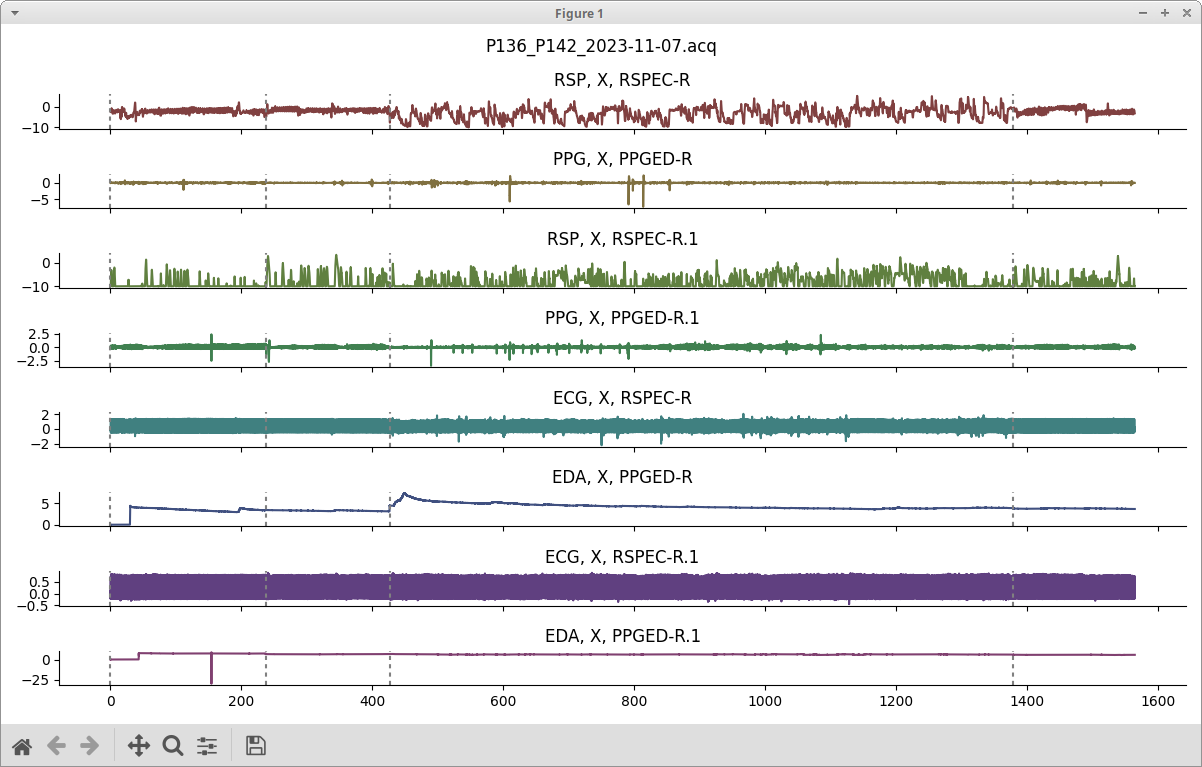
To preview a file, use the provided script from the command line:
$ bioview <FILENAME>
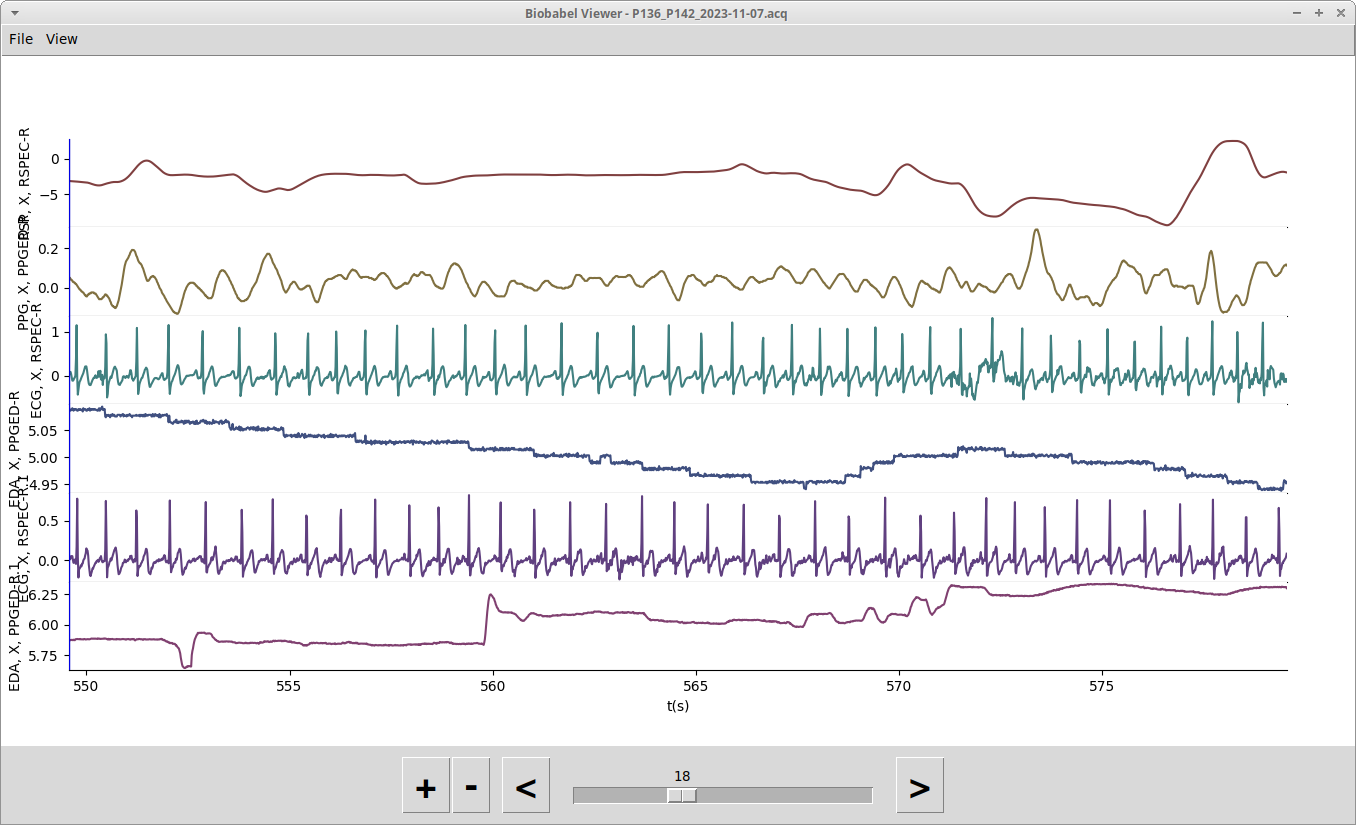
Or, for a simpler lightweight viewer:
$ biobabel <FILENAME>
You can omit <FILENAME> in which case you will be prompted to select a file you want to preview.
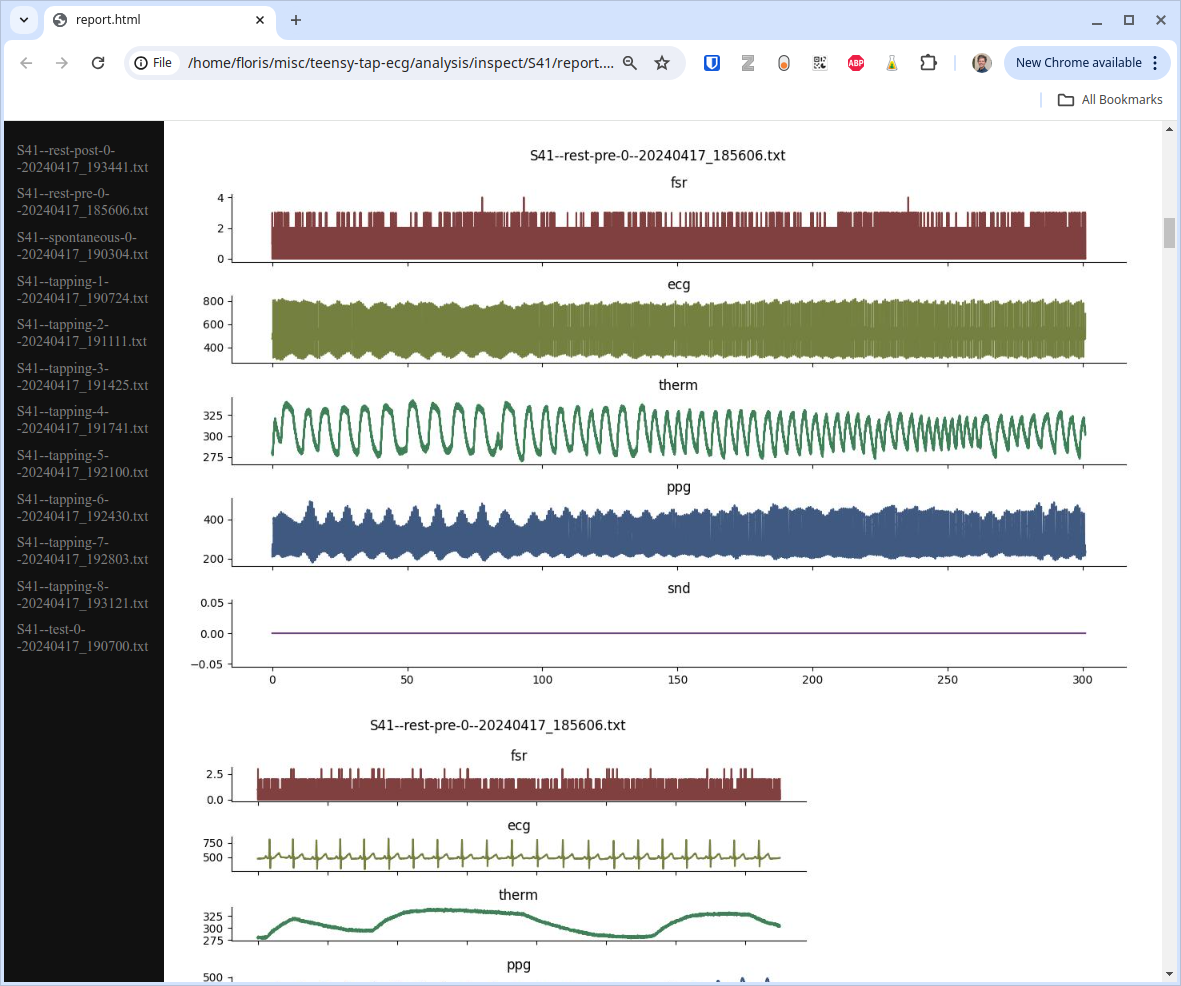
To turn one or multiple files into an HTML rendition:
$ biohtml <FILENAME(s)>
This will create a file report.html containing an accessible overview of all the files specified, which can be opened in your web browser like so:
To split a file into multiple files along the marker time series (this will create <FILENAME_001>, <FILENAME_002> etc.:
$ biosplit <FILENAME>
To merge multiple files into a single output file (assuming that all channels have the same time onset):
$ biomerge <FILE1> <FILE2> ... <OUTPUT_FILE>
To convert a file to HDF5:
$ tohdf5 <FILENAME>